How to Change and Limit System Restore Storage Space Usage Size in Windows with VSSAdmin

Home»Operating Systems»Windows»How to Change and Limit System Restore Storage Space Usage Size in Windows with VSSAdmin
System Restore is an important feature in Windows, from Windows XP, Windows Vista, Windows 7, Windows 8, Windows 8.1, Windows 10 to future OS. However, unlike the user friendly and easy to use slider bar in Windows XP, there is no easy way and no option to change the limit of System Restore disk storage space usage in Windows Vista via graphical user interface. Although the option made a comeback in Windows 7 and later, Windows does offer a command line utility called Volume Shadow Copy Administrative Command-Line Tool, or vssadmin.exe that can be used to limit the maximum hard disk space can be used by System Storage or change the limit of this value.

The utility is named Volume Shadow Copy Service (VSS) because it includes not only System Restore function, but has added several enlarged functions such as Previous Versions feature that backup copies of deleted or changed files, and the service is also been used by the built-in Windows backup tools. The command line utility is useful for people who wants more controls and prefer to works on shell rather than GUI.

By default, Windows allocates 10% to 15% of the disk drive’s size or 30% of available free space on the drive, whichever is smaller as the maximum Shadow Copy store space. However, on some system, the maximum limit is unbounded, where Windows can use up all available precious free space on your hard disk. So it’s good to check and limit the maximum disk storage space allocated to VSS.

To use vssadmin.exe utility, users will need to launch Command Prompt with administrative rights. To do so, simply click on Start button, then type CMD in the Start Search box, and finally press Ctrl + Shift + Enter as a shortcut to open Command Prompt in elevated mode. Alternatively, you may also right click on CMD and select Run as Administrator. Answer Allow or Yes to User Access Control prompt. Then you can check, verify, or set the limit for VSS or System Restore using the following commands.

Display List of Commands Supported by VSSAdmin.exe

vssadmin /?

Check and View Existing Used, Allocated and Maximum Shadow Copy Storage Space

vssadmin List ShadowStorage

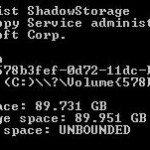
Output will be something like this. The amount of space used is total for Shadow Copy service, which include System Restore and Previous Versions.

vssadmin 1.1 - Volume Shadow Copy Service administrative command-line tool
(C) Copyright 2001-2005 Microsoft Corp.

Shadow Copy Storage association
   For volume: (C:)\\?\Volume{578b3fef-0d72-11dc-be49-806e6f6e6963}\
   Shadow Copy Storage volume: (C:)\\?\Volume{578b3fef-0d72-11dc-be49-806e6f6e6963}\
   Used Shadow Copy Storage space: 89.724 GB
   Allocated Shadow Copy Storage space: 89.951 GB
   Maximum Shadow Copy Storage space: UNBOUNDED

Reduce, Increase or Change the Maximum Allocated Shadow Copy (System Restore) Space Size

Syntax:

vssadmin Resize ShadowStorage /On=[drive]: /For=[drive]: /Maxsize=[size]

For example, to limit the usage of VSS backup files which include System Restore files and Previous Versions file to 5 gigabytes on the C: drive, with the storage space for these files located on drive C: too, use the following command:

vssadmin Resize ShadowStorage /On=C: /For=C: /MaxSize=5GB

The value for MaxSize must be at least 300MB or greater and accepts the following suffixes: KB, MB, GB, TB, PB and EB (well, th last few sort of a joke as if you have such many space to spare you won’t worry about how much space VSS is using). If a suffix is not supplied, MaxSize will treat the value entered as bytes. If you intend to set no limit to the amount of space VSS System Restore and Shadow Copy can use, leave out MaxSize parameter, and the max will be set to unbounded.

But before you shrink or reduce the disk space limit for VSS, remember that VSS is used by both System Restore and the useful Previous Versions (Shadow Copy) feature, where you can retrieve and recover deleted files, or accidentally/wrongly modified files by restoring the saved copy or “previous version” of the file or document. So if you reduce the space it able to use, unavoidable the generation and number of the files that can be backed up are also reduced.

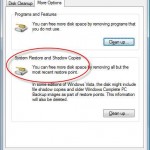
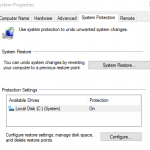
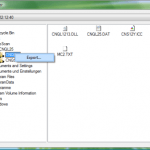
Update: Change the System Restore disk usage limit within Desktop Explorer.

By | 2016-12-09T08:39:51+00:00 December 9th, 2016|Categories: Windows|Tags: , , |21 Comments

About the Author:

LK is a technology writer for Tech Journey with background of system and network administrator. He has be documenting his experiences in digital and technology world for over 15 years.Connect with LK through Tech Journey on Facebook, Twitter or Google+.

  • Pingback: Windows Vista: Disable and Turn Off System Restore (Shadow Copy) » D’ Technology Weblog: Technology News & Reviews()

  • Pingback: Dan Crevier's Blog : Disappearing disk space on Vista()

  • Chris

    Great Info! Thanks for publishing this. I had no idea why the hard drive on my wife's machine was appearing much more occupied than the directories showed. Much help, great explanation. Thanks!

  • hey thanks a lot..

    loved it !

  • Thanks for Info, I just tried, and i gain 4 gb of my remaining c drive. Is there any other way to shrink more or to delete unused files beside disk clean up? Thanks

  • *phew* Thanks for that. My VSS was eating up 41GB of my drive. My free space thanks you 🙂

  • Wendy Whyte

    Many thanks for this great informative article. I wondered why free space on my 250Gb HD was disappearing; but hopefully I've now put an end to it.

    Thanks again.

  • azmo

    Many thanks for this info,very usefull.

  • vanessa

    great help!

    Thanks a lot!

  • Clark

    Dude… Solve the issue I have been suffering with for months… I just recovered 231GB!

    My vista box is useful again! Thanks!

  • Thank you so much! One of my friends was complaining about this for a while, and I didn't really know what was going on. This was the answer! Recovered almost 60GB of space on the hard drive thanks to this little trick.

  • Wendy

    OMG, this really worked!!! I just got my new computer the end of October. I noticed every day I was losing about 2g!! I just regained approx 80g!! Thanks so much!!

  • Mark

    This is an excellent article. My 250GB drive was down to 5GB free, but my directories only showed 75GB of actual files. None of the articles that came up when I Googled the problem were anywhere close to being the right solution. I recovered 145GB of space. The change did not show up right away, however. Not sure why it took a while to refresh. You should add search terms "Vista shows hard disk c: is full, but it isn't" or something like that.

  • AR

    I tried this but when I enter the command "vssadmin List ShadowStorage", it says 'No items found that satisfy the query'. What's wrong?

  • mymama1993

    I love you ^^ <3 I did exactly what was told 😛 with diff value of course ^^ I gained memory instantly!

  • Gabe S

    WOW. It was eating up almost 90GB… I set the maximum to 20GB and it instantly gave me the 70GB back. I wonder when it would ever be necessary to use that much space for system restore…. thank you =]

  • Troy

    First of al, thanks for the solution. But, although it helped me to recover some free space, it is still too much occupied space. I have 28GB on the disc C, but windows shoes me around 60GB. Do you know what else it could be?

    Thanks.

  • Luce

    I did this using the desktop explorer and it worked! I got over 10 GB back. But today it went down another GB. Why am I still losing GB after it gave me space back?

    this is so frustrating! Also what happens if all my space is gone one day? I wont be able to save anything? thanks

  • Ron

    Hi1

    This worked, but I had to invert the ''For'' and ''On'' commands for my Toshiba Satellite laptop to accept it. Typing the full command with these two inverted worked.

    Thanks1

  • Conor

    Hey hey. I'm glad I found this but I'm having a problem with the commands (first time I've properly used it for anything).

    I entered vssadmin /? first and then I tried

    vssadmin List ShadowStorage

    but it said "no items found that satisfy the query". What am I doing wrong?

  • Anon

    THANK YOU! THANK YOU! THANK YOU!

    I combined your advice from two articles.
    First I turned off System Restore, immediately turned it back on and created a restore point.
    Then I opened the Command Prompt and used your suggested commands to limit the size of Shadow Storage to 5GB, as suggested in this article.
    The restore point I created was only 90MB with 600MB allocated. It seems 5GB is plenty for maximum disc usage. Maximum storage had been 14.889GB. I'm using a 100GB hard drive in an older laptop and free space is very important. I now have over 13GB of new free space. That's 13% of the entire Hard Drive.

Pin It on Pinterest

Share This

Share This

Share this post with your friends!