Disable and Remove ThinkPad Hidden Service Partition
IBM/Lenovo ThinkPad usually comes a protected hidden service partition that takes up about 5 GB of hard disk space. So you need not be surprise when you check your available hard drive space and found out that the size of hard disk is less than the size advertised.
ThinkPad service partition is a non-DOS partition Hidden Protected Area (HPA). This partition is used to store original system files necessary to restore the system to its out of the box (factory) condition. To know if your ThinkPad system has service partition, there are two ways to check:
If your machine displays the message “Press F11 to invoke the Product Recovery Program” or “To start the product recovery program, press F11” during system start-up, then your system has the service partition.
If the instructions located in the User’s Guide concerning recovering preinstalled software state to recover your system by choosing F11 at boot-up, then your system came preconfigured with the service partition.
The trouble with service partition is that it takes out quite a bit of precious laptop/notebook hard disk space. Normally, ThinkPad users won’t be restore your system frequently, unless system crash occurs. So, service partition is one of the least used component that reside on the hard disk, and thus it can be stored at other medium, such as CD or DVD. Beside, the hard disk in a laptop has the highest possibility of crash or broken. When the hard disk spoilt, you can be sure that the service partition will not be able to use too. So it’s logical too to store the data in service partition as a product recovery CD.
After creating the ThinkPad recovery CD/DVD/USB, or if you simply just don’t like the service partition space to be wasted idle, the next step is obviously to reclaim and recover the space that previously occupied by service partition.
Important: Once you remove the service partition, you will not be able to restore your ThinkPad notebook system to original state at it leaves factory, unless you have prepared or have the recovery CD.
The first step to remove ThinkPad service partition is to unhide and unprotect the service partition in the BIOS. ThinkPad BIOS will overwrite the HDD controller so that the disk will assume the space allocated to service partition doesn’t exist in order to safeguard the partition from accidental deletion. Press F1 or Access IBM at the beginning of the boot sequence when the ThinkPad boots up.
In the BIOS setup menu, go to Security, and then set the IBM PreDesktop Area to Disabled.
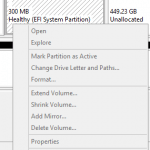
Now you can use any partition manager such as fdisk, diskpart, BootIt NG or Partition Magic to manipulate the partition, either delete the partition and create a new partition on reclaimed space, or merge the service partition to existing partition. If you having trouble trying to delete the service partition, try to boot to DOS, or use a bootable partition manager.
Alternatively, if you have a non-IBM/Lenovo laptop or older IBM/Lenovo laptop that doesn’t HPA-aware, you can download Feature Tool from Hitachi Global Storage Technologies. The IBM’s (Hitachi’s) Drive Feature Tool can also remove the Hidden Protected Area service partition by changing the capacity of the hard disk.
Note: Newer ThinkPad models from Lenovo and/or with Q and/or S drives no longer requires such steps.
LK is a technology writer for Tech Journey with background of system and network administrator. He has be documenting his experiences in digital and technology world for over 15 years.
Connect with LK through Tech Journey on Facebook, Twitter or Google+.